Networks view
Note
To create and delete a network, as well as view and change settings, you need SOC administration rights.
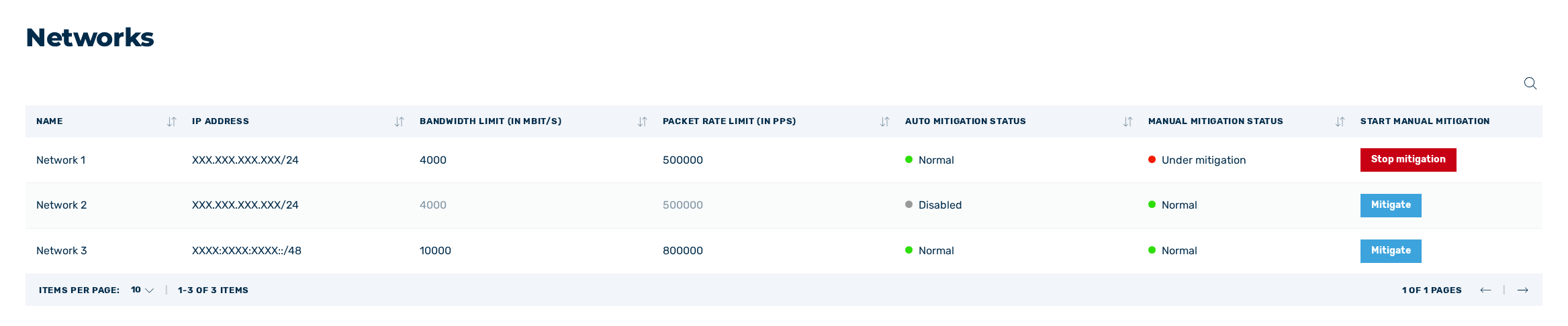
Networks view
The Networks view provides an overview of the networks, the IP address ranges of the networks, the configured packet rate limit (in packets/s), the configured bandwidth limit (in MBit/s), and the mitigation status.
The following information is available:
| Element | Description |
|---|---|
| Name | The name of the network. |
| IP Address | The IP address of the network. |
| Bandwidth limit (in MBit/s) | The maximum bandwidth allowed for your network.NoteIf the network protection switch under Auto Actions is disabled, all values defined prior to deactivation are shown in grey. |
| Packet rate limit (in PPS) | The maximum number of packets per second allowed on the network.NoteIf the network protection switch under Auto Actions is disabled, all values defined prior to deactivation are shown in grey. |
| Auto mitigation status | Shows the status of mitigation:
|
| Manual mitigation status | Shows the status of manual mitigation:
|
| START MANUAL MITIGATION | Open the Mitigate network or IP address(es) dialog to start mitigation for the selected network. |
 : Automatic mitigation is disabled.
 : Mitigation has been initiated.
 : Mitigation has been completed.
In addition, you have the following management and configuration options available:
| Element | Description |
|---|---|
 |
The icon enables you to search specifically for names, IP addresses, bandwidth, and packet rates. |
 |
The icon allows you to sort individual columns. |
| Add Network | The button opens the Add new network dialog for adding a new network. |
 |
The icon opens the Information about <network name> dialog for viewing all the settings defined for the selected network. |
 |
The icon opens the Edit network dialog for editing the settings of the selected network. |
 |
The icon opens the Delete network dialog for deleting the selected network. |
 |
The mitigation icon next to the Networks view in the left navigation bar indicates whether at least one mitigation is running. |