Company management
Proceed as follows to access a website of a company:
- ► Open the Myra DataHub.
- ► Log in.
- ↳ The Myra DataHub home page with the company accounts opens.
- ► Click on the name of the releated company.
- ➔ The Myra DataHub home page with the company accounts opens.
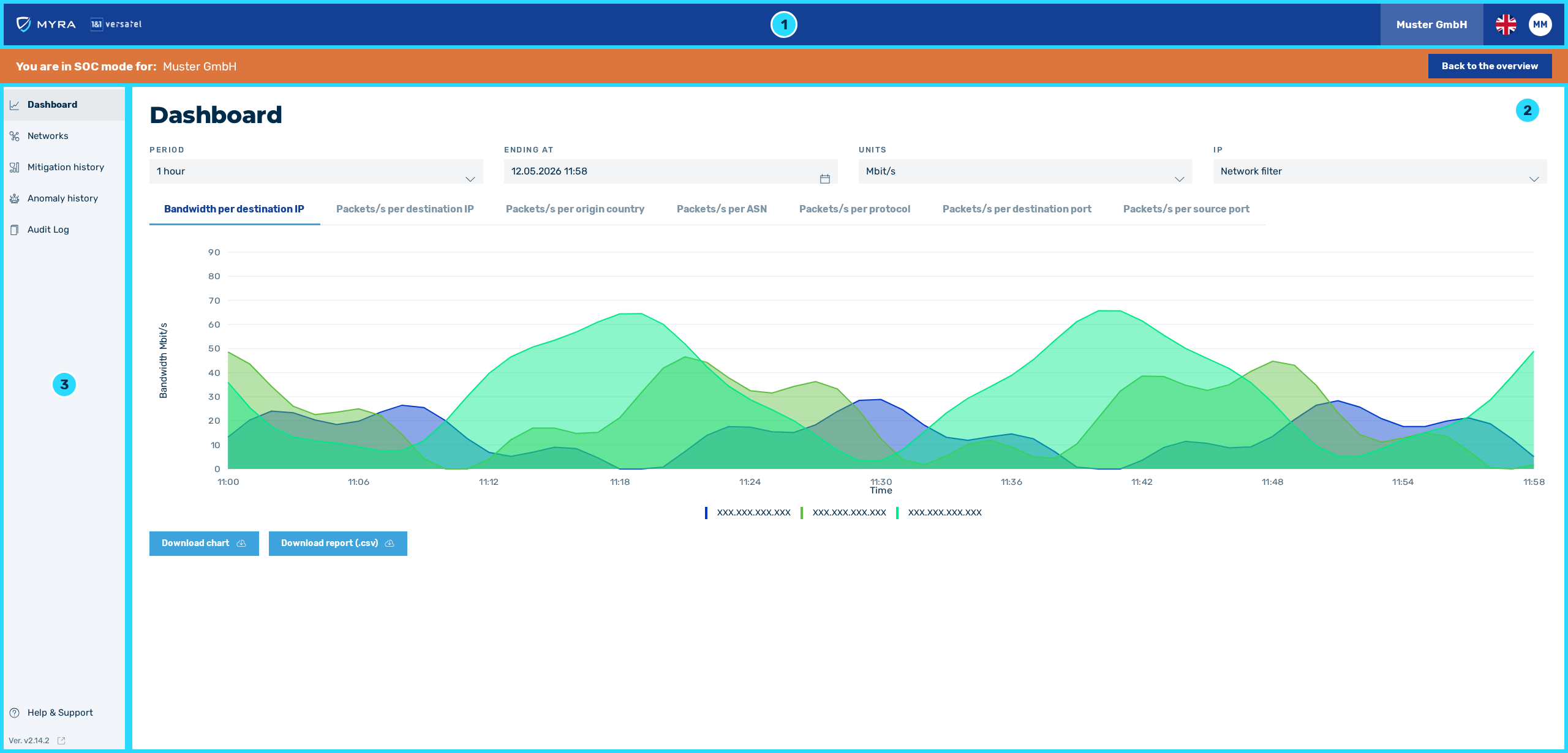
Home page for companies
On the home page of each company, you can find the following information:
-
■ Top menu bar with access to the following buttons (1):
- ■ Button with the company name for accessing user management
- ■ Button with flag icon for selecting the user interface language
- ■ Button with the user's profile picture for managing their own account settings
- ■ In the event of maintenance, important information about the type and duration will be shown here as a separate banner.
-
■ Shows the content of the individual views (2)
-
■ Tabs with the following views (3):
- ■
 Dashboard
 - ■
 Network
 - ■
 Mitigation history
 - ■ Anomaly history
- ■
 Audit Log
 - ■ Help & Support for opening the online help
- ■ Display of the current version number with the
 icon for opening the Changelog view (see Version history view)
- ■
Note
In SOC mode, you act as the admin of the respective company. An orange status bar below the top navigation bar indicates that you are in SOC mode for a company.
If you have opened a company and want to return to the overview of all companies in the Company accounts view, you must use the Back to the overview button. Using the back button in the browser does not work.
If you initiate manual mitigation for a company or make other changes in SOC mode, this will be recorded in the audit logs as a change made by you as a SOC user.
